
The sidebar
The right-hand sidebar holds lasso's tools. Most of them follow herdr's focused pane: switch to another agent in the terminal and the file tree, the diff and the editor switch with it, onto whichever machine that pane is working on.
The built-in tabs, in their default order:
| Tab | What it is |
|---|---|
| Agents | Every agent across your hosts. Phones and narrow windows only. |
| Files | A file browser, viewer and editor for the focused pane's directory, with a Diff view of its git changes. |
| Scratch | A notepad you can send to the terminal or save to a file. |
| Browser | A shared Chromium your agents can drive, or a plain iframe. |
| Usage | Every tracked provider's quota windows in full. |
| Settings | lasso's settings, in a General and a Themes pane. |
Enabled plugins add their own tabs to the same strip.
⌘⇧F, ⌘⇧S and ⌘⇧B open the sidebar straight onto Files, Scratch and Browser, and ⌘, onto Settings › General. A link to lasso with ?open=settings does the same once on load (the desktop app's Advanced Settings).
Files#
Files is a file tree, a viewer and an editor, rooted at the focused pane's working directory on the machine that pane is actually using. When the pane is an SSH session onto another box, or a herdr machine view, the tree, the viewer and every save go to that other box. See Hosts.
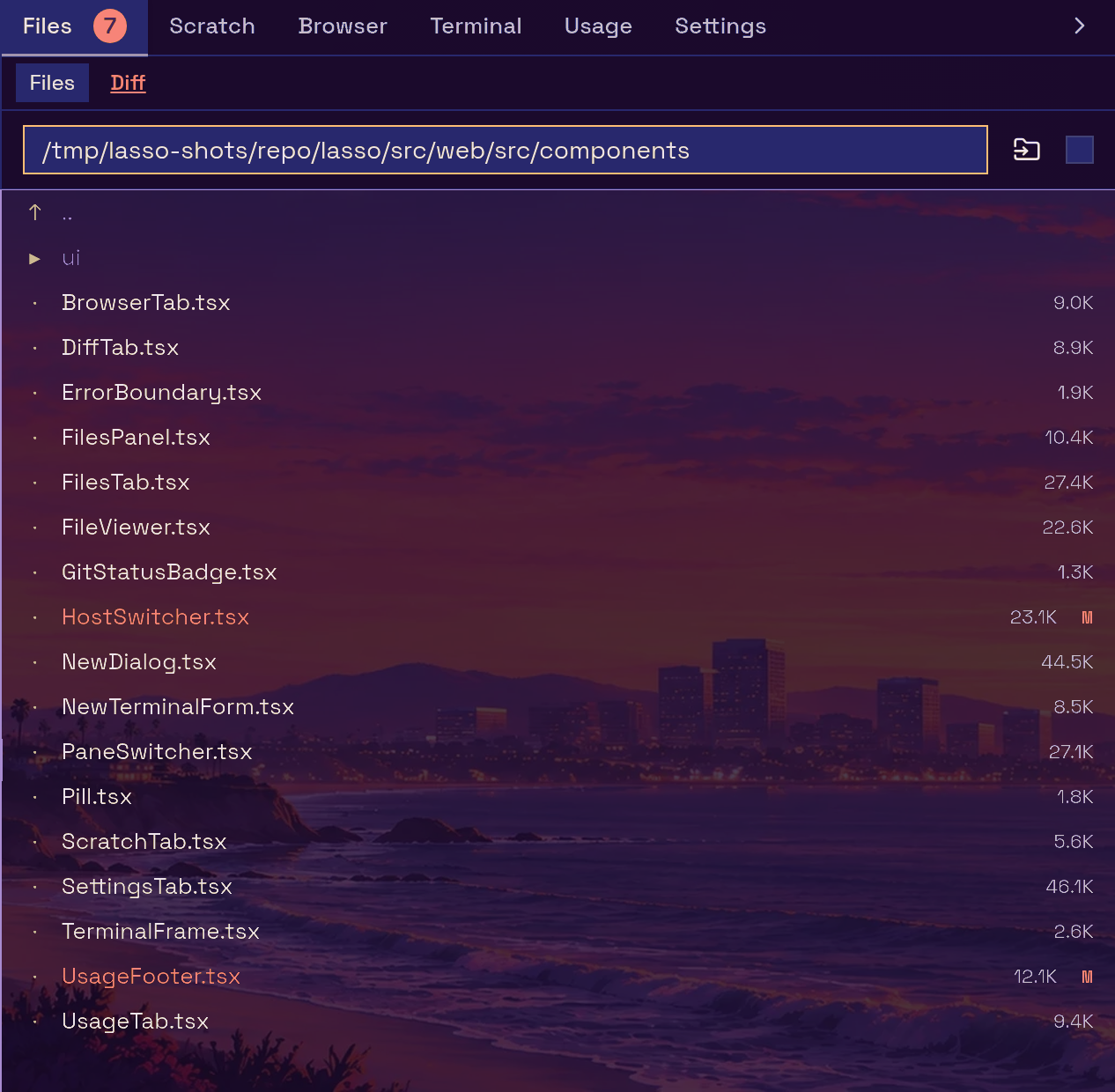
Following the pane. The follow active pane checkbox in the tab's header keeps the tree on the focused pane's directory. Typing a path into the go to path… box (press Enter) stops following, so the tree stays where you put it; tick the checkbox again to jump back to the pane. Each herdr pane keeps its own tree position, open file and expanded folders for the session, so switching agents and back returns you to where you were.
The tree.
- Changed files carry their git status letter (
Mmodified,Aadded,Uuntracked,Rrenamed), and a folder that contains changes carries a dot. - The folder-click button beside the path box switches between expanding a folder in place and navigating into it. The choice is saved on the server.
- Right-click a file for Download, Rename… and Delete. Folders offer Rename and Delete.
- Go to file (
⌘P, or the search button in the tab header) finds a file by name, like VS Code's. Type any part of its name or path: the letters only need to appear in order, sofvfindsFileViewer.tsx, and spaces separate terms that must all match (web app). Enter opens it; a trailing:42opens it at line 42. It searches the folder the tree is showing, on that folder's host. Inside a git repository it lists git's files, so anything.gitignoreignores is left out; elsewhere it skips hidden folders andnode_modules, and stops at 50,000 files or 4 seconds, saying so. With nothing typed it offers the files you opened with it this session. - Find in the open file (
⌘F) searches the file the viewer has open, even while the terminal has the keyboard. In the editor it opens the editor's own search; in a rendered Markdown preview it opens a find bar over the preview (Enter and Shift-Enter step through matches, Escape closes it). A match must sit within one run of text, so a phrase split by formatting is not found. An HTML preview switches to its source first. When focus is in another text box, or your last click was outside the viewer,⌘Fstays the browser's own find. - Drag files from your desktop onto a folder (or onto empty space for the current root) to upload them there. The upload button in the tab header does the same for the open directory. Uploads are capped at 1 GiB.
The viewer and editor. Clicking a file opens it over the tree.
- Text and code open in an editor. Changes are saved only when you press save or
⌘S/Ctrl-S; closing with unsaved changes asks first. An unsaved buffer survives switching to another pane and back. - Markdown opens as a rendered preview (Mermaid diagrams included). The pencil and eye buttons switch between the raw editor and the preview.
- Images (click to zoom), PDFs, videos and audio are shown read-only. They reload on their own when the file changes on disk.
Esccloses the viewer.
Downloads and HTTPS. A download is an ordinary link to the file, served with Content-Disposition: attachment. Some browsers warn about or block downloads from a plain-HTTP page, so if a download does not arrive, reach lasso over HTTPS (see Why HTTPS matters).
When an agent opens a file for you. An agent can put a file or folder in front of you with the open_file MCP tool or the lasso open <path> command (see MCP tools and CLI tools for agents), asking for the web app (app: "web"). Every visible lasso tab reveals the Files tab, opening the sidebar if it is collapsed, and shows the file, scrolled to a line if one was given. A folder re-roots the tree there. If you have unsaved edits open, lasso does not replace them: a notice offers to open the agent's file, and taking it asks before discarding your changes. A tab in the background ignores the request.
Diff#
The Diff view sits beside Files at the top of the tab. Its label is underlined in the warning colour while the working tree is dirty and shown in the success colour when it is clean.
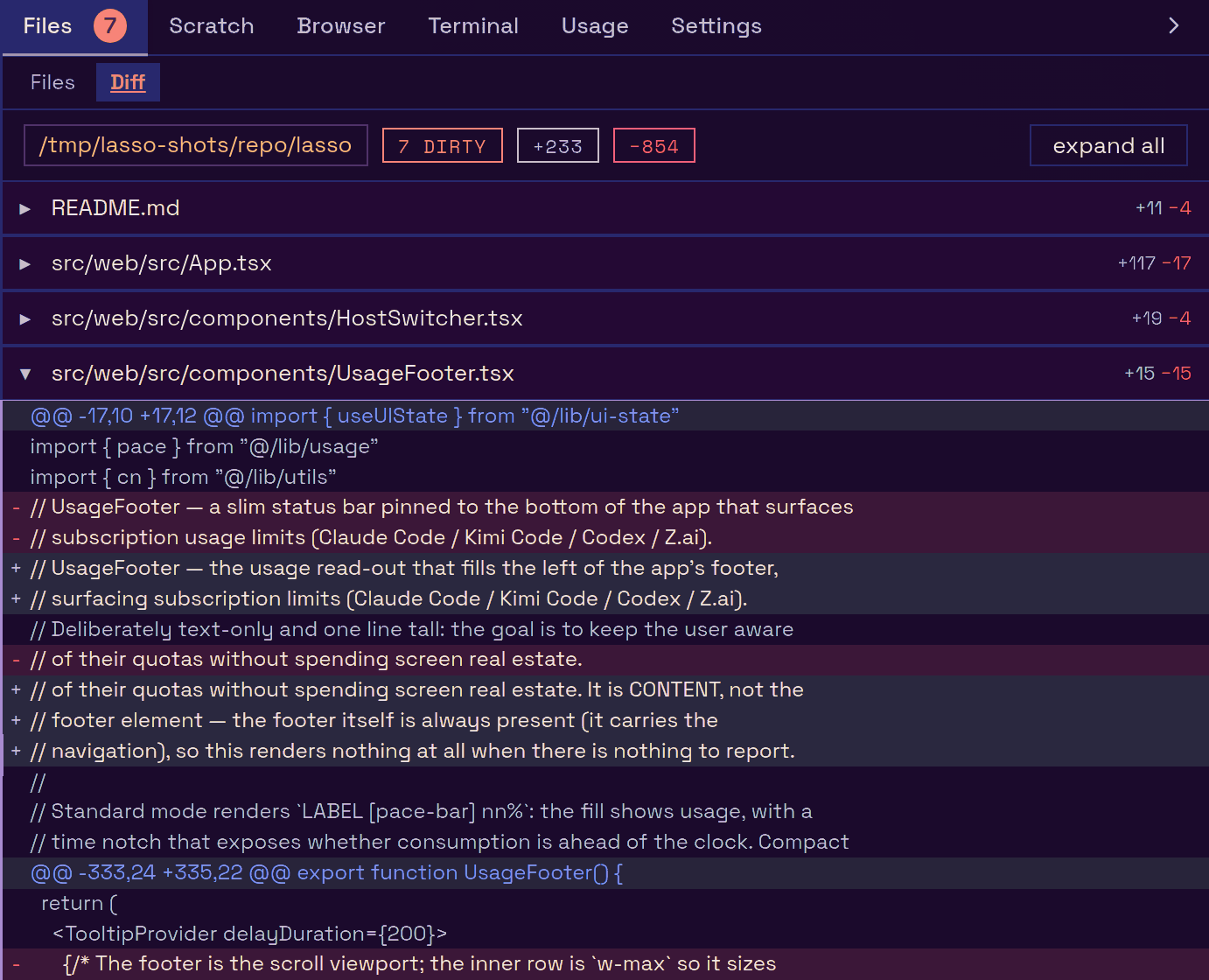
- While the repository has uncommitted changes, it shows the working tree against
HEAD. - Once it is clean, it shows the current branch against its base branch (labelled
vs <base>), so you can still read what the agent has done on its branch. - The header shows the directory, the dirty count or "clean", and the total lines added and removed. Each file starts collapsed; expand one to load its hunks, or use expand all.
- It follows the focused pane exactly like Files, including onto other hosts.
The Files tab's label carries the same git status badge, and so does the footer's Sidebar button while the sidebar is collapsed.
Scratch#
Scratch is a persistent notepad, kept in this browser across reloads.
- Send to Terminal (
⌘↩/Ctrl↩) types the buffer into the herdr terminal's focused pane without pressing Enter, so you can review it there first. - Save writes the buffer to a file on the focused pane's host. The path defaults to
scratch.txtin the pane's working directory. - Clear empties it.
Browser#
The Browser tab shows a web page beside the terminal, so you can watch a dev server reload while an agent works. Type a bare port (5173) or any URL into the address bar. It has two modes, switched with the Agent / Iframe control in its toolbar:
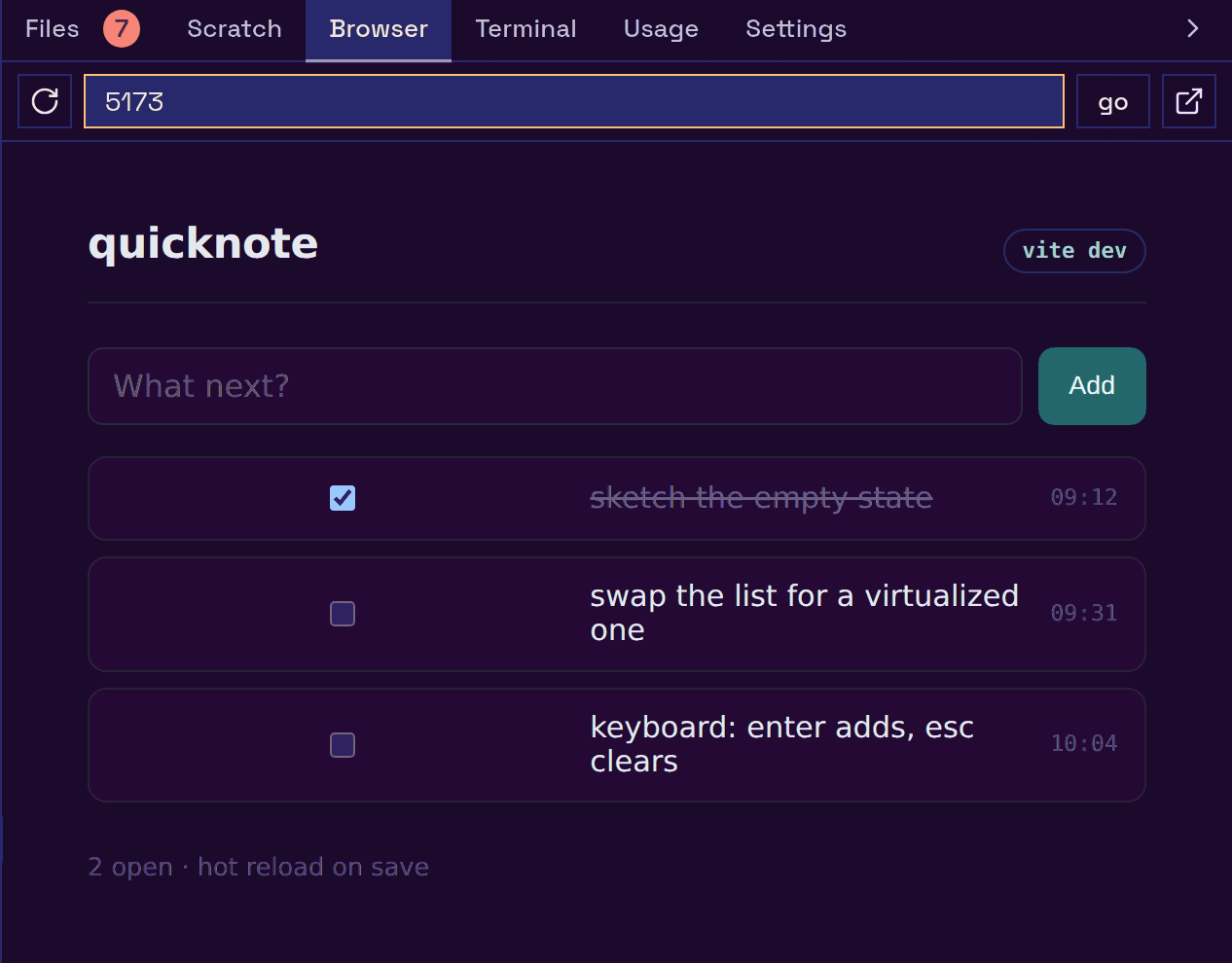
Agent (the default when lasso can find Chromium) is the shared browser: a real Chromium running on lasso's machine, streamed into the tab and driven by your mouse, keyboard and touch. Your agents connect to the same Chromium, so you watch the pages they open and they see the pages you open.
- It shows one page at a time; its own tab strip along the top lists the open pages, with a button to open a new one.
- When an agent opens a page for you (lasso's
open_browser_tabMCP tool), every browser showing lasso switches its Browser tab to Agent mode and that page, and says which agent opened it. - Any site loads, because it is a real browser rather than a frame, and a bare port means
localhoston lasso's machine. - It streams only while the tab is on screen, so an unwatched browser costs nothing and can idle out.
- On a touch device, the keyboard button raises the on-screen keyboard to type into the page.
Iframe loads the page directly in your own browser with nothing in between. That keeps it private to you, but your browser's rules apply: an HTTPS lasso cannot frame an http:// page (mixed content), a lasso reached over a public address cannot frame a private or tailnet address, and many sites refuse to be framed at all. lasso detects each case, explains it, and offers to open the page in a new tab. A bare port means that port on the hostname you reached lasso by.
The mode you pick is saved on the server, so every device opens the same one. Without a Chromium on lasso's machine, the tab uses Iframe and says why.
Browsers. In Agent mode, the Browser bar along the bottom of the tab picks which of lasso's browsers you see. Each is its own Chromium with its own cookies and logins; a dot marks the ones running. The settings button beside it opens Browsers, where you can create, rename and delete them. See Shared browser.
Links from the terminal. A link clicked in the terminal opens here. It opens in Iframe mode, since a link you click is your own page rather than one to put in front of every agent; the exception is an http:// link on an HTTPS lasso, which goes to the Agent browser (or a new tab if there is none). Cmd/Ctrl-click opens a new browser tab instead. The setting is Settings → General → Terminal & browser → Open terminal links in the sidebar browser.
Agents#
On a phone or a window narrower than 768 px, the Agents tab is the first in the strip. It lists every agent across all connected hosts, ordered so blocked agents come first, as a single column on a phone and two columns where they fit.
- Each tile shows the agent's name, machine, worktree and status.
- The filter matches name, harness, worktree and machine (every word must match).
- Tapping a tile focuses that agent (moving this tab to its host if needed), closes the sidebar, and opens its chat view.
- The close button on a tile closes that agent's pane after a confirmation. The agent stops; its transcript stays on disk.
- The + button in the tab strip opens the New dialog.
- A host that could not be listed is reported at the bottom.
At desktop widths this tab is not shown; the same list is the chat view's docked column.
Usage#
lasso tracks your coding-subscription quotas so you can see a budget running out before an agent stops mid-task. The footer shows a one-line glance; the Usage tab shows every window in full.
Providers. lasso reads each provider's credentials on lasso's own machine and calls the same usage endpoint the provider's own tools use:
| Provider | Credentials read from |
|---|---|
| Claude Code | ~/.claude/.credentials.json |
| Kimi Code | $KIMI_CODE_HOME/credentials/kimi-code.json, else ~/.kimi-code/credentials/kimi-code.json |
| Codex | $CODEX_HOME/auth.json, else ~/.codex/auth.json |
| Z.ai | ZAI_API_KEY or GLM_API_KEY; else ~/.config/openusage/zai.json or ~/.config/zai/key.json; else a Z.ai-backed Claude Code setup (ANTHROPIC_BASE_URL plus ANTHROPIC_AUTH_TOKEN/ANTHROPIC_API_KEY, in the environment or in ~/.claude/settings.json) |
A provider with no credentials is hidden automatically. Codex and Kimi tokens that expire are refreshed and written back to their files.
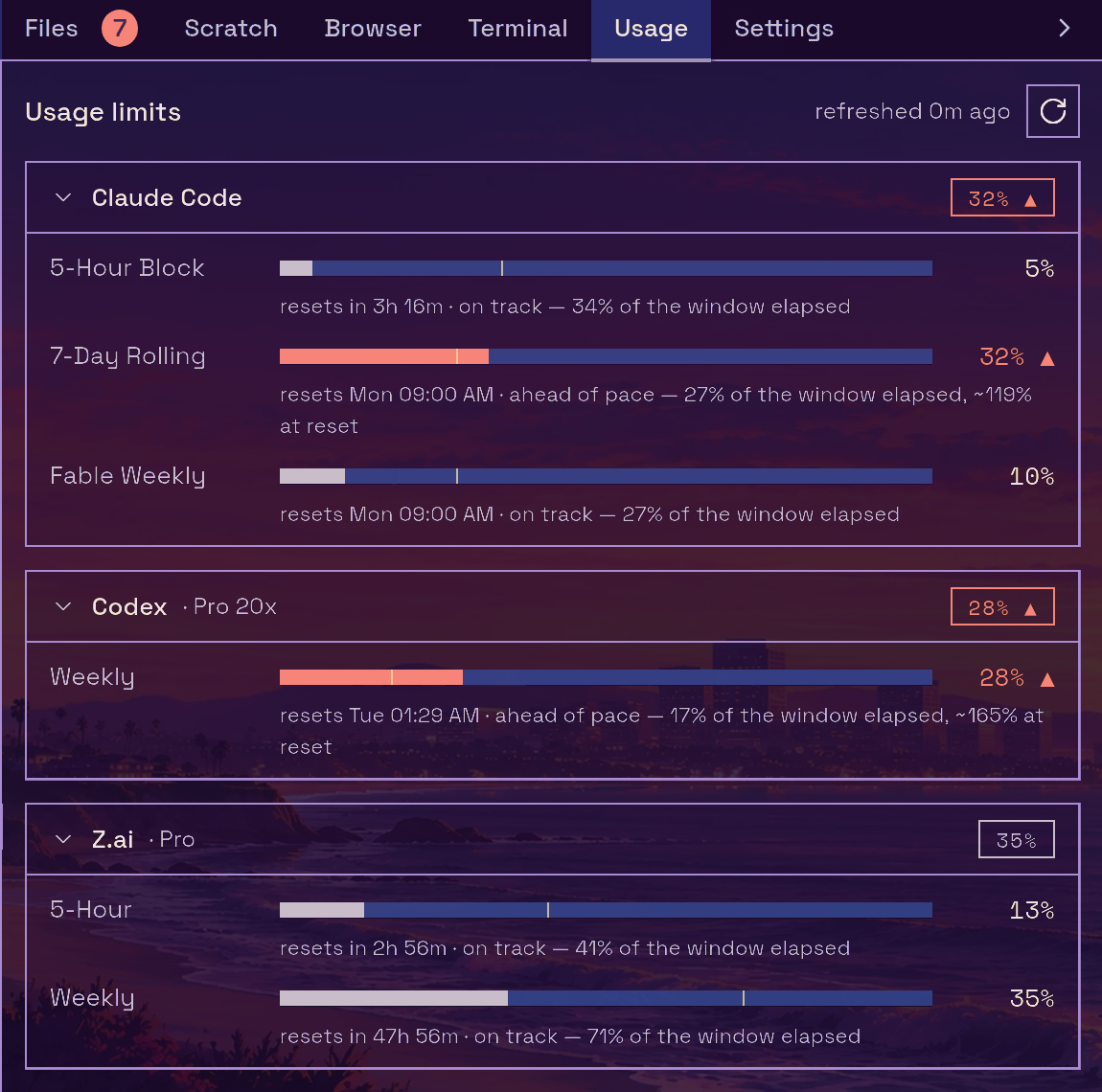
Reading a window. Each window (for example Claude Code's 5-Hour Block and 7-Day Rolling) has a bar with:
- the fill, which is how much of the quota you have used;
- a pace notch at the share of the window that has already elapsed. Usage past the notch means you are burning faster than the clock and will hit the cap before it resets;
- below it, the reset time and the pace: "on track", or "ahead of pace" with a projection of where usage lands at reset when the window is far enough along to project (from 10% elapsed). So "28%, ahead of pace, ~165% at reset" tells you a weekly budget will run out before it resets, even though 28% sounds comfortable.
A bar turns to the warning colour at 90% or when ahead of pace, and to the error colour at 100%.
Refreshing. The footer and the tab poll every minute, and the tab's refresh button fetches now. lasso caches results for about 25 seconds so several open browsers do not multiply requests. If a provider rate-limits lasso, it backs off for five minutes and keeps showing the last good reading (marked with a warning), which is also saved to disk so a restart does not blank the numbers.
Configuring it in Settings → General → Sidebar & usage → Usage tracking: tick the providers to track (unticking one stops its requests and token refreshes entirely), order them with the arrows, and choose a Standard or Compact footer. Compact abbreviates provider names and drops the footer's bars; hover a metric for its full label, reset and pace.
Settings#
Settings has two panes, General and Themes. Each pane is a list of collapsible groups, all closed by default. A closed group's header summarises what is inside, and anything needing attention (such as a plugin waiting for approval) shows there. Which groups you keep open is remembered per browser.
General#
Agents
- New agents: Auto-title new agents from their prompt. After an agent is created, lasso asks the first local agent CLI that answers (claude, codex, opencode, omp, pi) to summarise its prompt into a short title for the herdr workspace and a one- or two-word name for the agent's herdr label and a scratch agent's tab. It runs on lasso's machine whichever host the agent is on: the branch and working directory keep their original names. On by default.
- New agent/terminal host: the host the New dialog opens on. Auto (use last used) picks the host you last created on.
- Configuring host: which host's creator settings the fields below edit. Each host keeps them in its own
~/.lasso/lasso.db; for a remote host lasso edits that file over SSH with the host'ssqlite3, so lasso itself does not need to be installed there. - New Agent defaults, New terminal defaults and Per-repository setup: see The New dialog.
Terminal & browser
- Open terminal links in the sidebar browser (on by default). See Browser.
- Shared browser: whether lasso's Chromium is running, its resource cap and open pages, with Start, Restart and Stop, the browser binary, and any problem that keeps it from running.
- Browser tab mode: Agent or Iframe.
- Connect an agent: lasso's
/mcpURL (whosebrowser_*tools drive the browsers), a ready-to-pasteclaude mcp addcommand and the raw CDP endpoint, each with a copy button, and how many agents are using a browser. See The browser tools.
Notifications
- Push notifications to this device registers this browser for Web Push, for agents that block waiting on you and for agents that call
lasso notify. Every registered device is listed with the outcome of its last push, and Send a test notification checks the whole path. The group explains when the browser cannot do push (it needs HTTPS or localhost) or when iOS needs the app added to the Home Screen first. See Notifications.
Sidebar & usage
Plugins
Installs, previews, enables, disables, trusts, updates, unlinks and uninstalls plugins, switches each one's MCP server between a container and a VM, restarts those servers and shows their logs. It shows which isb lasso found, or why plugin sandboxes are unavailable. See Plugins.
Getting started: Take the tour replays the first-run tour.
Themes#
Appearance, Background, Typography, Install a theme and Fleet sync. All of it is described in Theming.
Arranging and hiding tabs#
Settings → General → Sidebar & usage → Sidebar lists every tab, the built-ins and each enabled plugin's, with a visibility toggle and up/down arrows. Reset restores the default order.
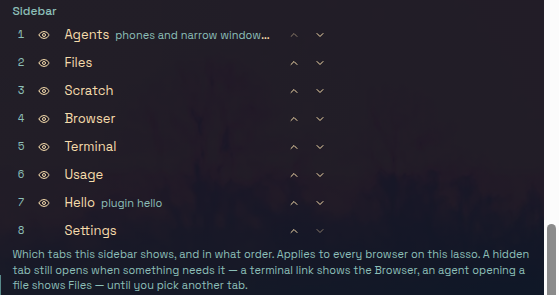
- The arrangement is saved on the server and applies to every browser on this lasso.
- Settings cannot be hidden, since it is where you un-hide everything else.
- A hidden tab still opens when something needs it: an agent opening a file shows Files, and a terminal link shows Browser. It stays in the strip until you pick another tab.
- A plugin that is disabled for a while keeps its place, and comes back where it was when re-enabled. A new plugin's tab lands just before Settings.
- Agents is shown only on phones and narrow windows wherever you put it.