
The terminal
The terminal column is your actual herdr session, not a copy of it. lasso runs it in ttyd and frames it in the page, so herdr's keys, panes, workspaces and theme behave exactly as they do in a native terminal. lasso then adds a few things around it: file paste and upload, touch controls for phones, and two reading views (Chat and Agents) that sit over the terminal without replacing it.
The herdr terminal#
The left column runs herdr on the host this browser tab is pointed at. On the local machine it runs herdr (change the command with -term-cmd); on a remote host it runs herdr --remote <alias> over SSH. Switching host from the footer moves only this browser tab: another tab can sit on another machine at the same time. See Hosts.
Every browser on the same host shares one herdr session. herdr sizes that session to one client at a time, so lasso only lets the browser that currently owns the session resize it. A background tab, or a phone waking up, does not shrink the terminal in the browser you are using.
The terminal wears the theme in force: the appearance palette named for your screen's light or dark scheme (the default), or herdr's own theme from its config.toml in Herdr mode or under a Nothing palette. It repaints live when the theme changes. See Theming.
A few behaviours lasso adds inside the terminal:
- Copy. herdr copies (copy mode, double-click, a mouse selection) by emitting an OSC 52 sequence, which ttyd's terminal ignores on its own. lasso handles it, so herdr's "copied to clipboard" actually reaches your clipboard. On a plain-HTTP origin, where the browser offers no Clipboard API, it falls back to a legacy copy.
- Paste.
Cmd-Vpastes as usual. On Windows and LinuxCtrl-Vpastes too (the browser's native paste runs instead of the terminal sending^V). - Shift+Enter and Ctrl+Enter. The terminal's xterm.js would send a plain Enter for both; lasso sends herdr the real key event (Ctrl+Shift and Ctrl+Alt too) so agents that distinguish them (a newline versus submit) receive it.
- Links. Clicking a link opens it in the sidebar's Browser tab instead of a new browser tab.
Cmd/Ctrl-click always opens a new browser tab. Turn the sidebar behaviour off with Settings → General → Terminal & browser → Open terminal links in the sidebar browser. - Right-click goes to herdr's own context menu rather than the browser's.
- Reconnecting. When the terminal's connection drops (a network blip, a laptop sleeping, lasso restarting during an update), lasso presses ttyd's reconnect prompt for you, retrying with a growing delay. On a touch device the prompt reads Tap to Reconnect, and a tap anywhere in the terminal brings it back.
Pasting and uploading files#
The terminal can only receive text, so lasso turns a file into a path:
- Paste a file or a screenshot into the terminal and lasso uploads it to the host the focused pane is working on, then types the file's path at the cursor. The agent in that pane can open it straight away. If the clipboard holds both text and a file (copying a spreadsheet range does this), the text wins.
- Pasted files land in
~/.lasso/uploads/dropped-files/on that host. Uploads are capped at 1 GiB. - When the focused pane is an SSH session onto another machine, the file goes to that machine, not to the host the terminal runs on.
The same upload path is used by the chat composer's attach button, the New dialog's prompt field (paste a screenshot there) and the Files tab's upload button.
The Scratch sidebar tab is a notepad whose contents you can send to the herdr terminal. See Scratch.
The input dial (phones and narrow windows)#
A touch screen has no Esc, no Ctrl, no arrow keys and no right button, and below 768 px there is no footer either. The input dial, two round buttons in the terminal's bottom-right corner, covers both gaps.
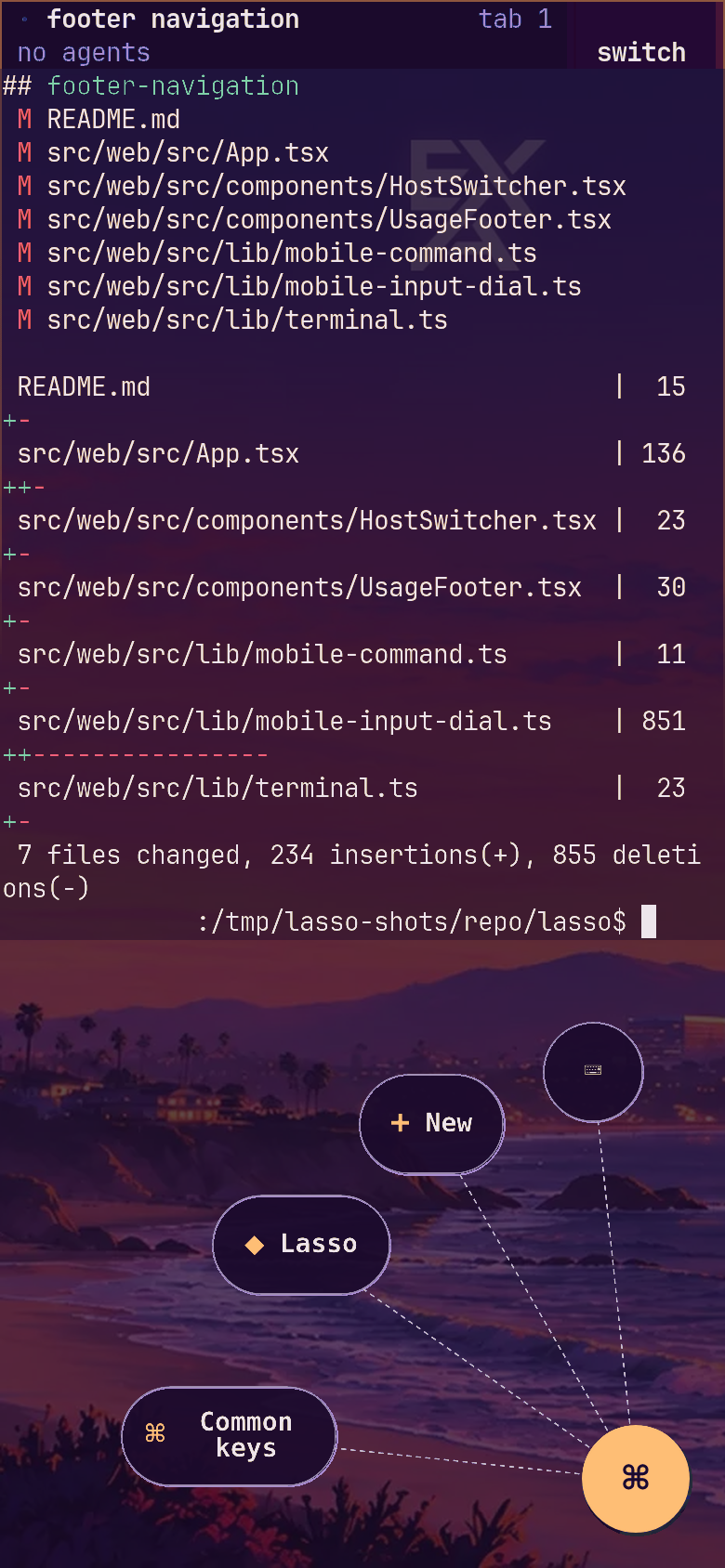
It appears whenever the device has a coarse (touch) pointer or the window is narrower than 768 px; either is enough, and lasso re-checks both as you rotate, fold or resize. It works with a mouse as well as a finger.
- The big button (a grid) opens the view picker: Terminal, Chat, Bots and any plugin views, then New (the New dialog), Search (what
⌘Kdoes in the view on screen: herdr's pane search in the terminal), Host (the host menu) and Sidebar (the right sidebar). - The smaller button above it (⌘) opens the common keys: Escape, Control C, Tab, Shift Tab, Enter, Up arrow and Down arrow, on a ring around the big button. Tap it, then tap keys; the ring stays open until you tap ⌘ again or tap anywhere else. Or press ⌘ and slide onto a key, and let go there.
The keys are sent as real key presses, so they work in whatever keyboard mode the app in the pane has turned on. The dial lives inside the terminal's own frame, which is what keeps the iOS on-screen keyboard open while you use it.
Touch gestures#
- Drag to scroll. A finger drag in the terminal becomes mouse-wheel scrolling, so it scrolls herdr's scrollback, full-screen TUIs and apps that capture the mouse alike. A tap without movement still reaches the terminal as a click.
- Long-press for right-click. Holding one finger still in the herdr terminal sends a right-click, which opens herdr's own menu.
Chat view#
Chat renders herdr's focused agent as a conversation instead of terminal output, so a session is readable on a phone and answerable without a terminal. Open it from the footer's view menu or with ⌘J on a desktop, and from the view picker behind the dial's Chat button on a phone.
Chat is an overlay: the terminal stays mounted and sized underneath, so opening it never reflows herdr for other browsers. It follows herdr's focus, so switching panes in the terminal (or picking another agent) switches the conversation.
What it reads. Chat reads the agent's transcript file on the host the pane runs on, not the terminal screen. It understands the transcripts of:
- Claude Code (
~/.claude/projects/…), - Codex (
~/.codex/sessions/…), - Oh My Pi (
omp), whose transcript path herdr reports directly.
A pane running anything else, or a plain shell, shows a note instead of a conversation. A newly created agent shows that it is starting until its transcript appears. When the focused pane is an SSH session or a herdr machine view onto another host, Chat reads the transcript on that other host.
What you see. User and agent messages, tool calls with their results, and thinking (folded). Questions an agent asks with options (such as Claude Code's multiple-choice prompts) appear as cards you can answer with a tap; a question with no options says to answer it in the terminal. New messages appear as they are written (the view polls every few seconds); scroll up to page back through older history, and use the jump button to return to the newest message.
Replying. The composer at the bottom sends text to the agent's pane.
⌘↩sends; a bare↩(or⇧↩) breaks the line. On a phone, use the send button.- The paperclip button attaches a file: it is uploaded to the agent's host and its path goes with the message.
- If lasso cannot tell whether a message landed, it keeps your draft rather than clearing it or sending it twice.
- While the agent works, the send button of an empty composer becomes Stop, which interrupts the turn (one
Escin its pane). - A message sent while the agent works waits under Up next above the composer and goes out once the agent is idle, one at a time and in order. lasso holds the queue, not the browser: it goes out with the tab closed or the phone locked, and every device shows the same one. Edit one with its pencil, move it up with its arrow, or remove it with its ✕. Stop puts waiting messages on hold until you press Send queued messages. When lasso cannot deliver one (your unsent text is in the agent's input box, or it cannot confirm the message landed), the queue pauses and says why, and nothing is resent automatically.
The header shows the agent's name (the workspace label lasso's auto-titler wrote, else the session's own title). Click it to rename the agent. The header also has a pin (pins the agent to the top of the agent list and the Grid) and a button to close the agent's pane, which asks for confirmation first. On a phone the header carries Show the terminal and Open the sidebar buttons, since there is no footer.
The agent list. At desktop widths, the footer's left-hand toggle (or ⌘B) opens a column beside the conversation listing every agent across all connected hosts, this tab's host first, with pinned agents leading and the rest ordered so a blocked agent is at the top. Filter it by name, harness, worktree or machine. Picking an agent moves this tab to its host if needed, focuses its pane, and shows its conversation. On a phone the same list is the sidebar's Agents tab.
⌘K in Chat opens a fleet-wide agent picker rather than herdr's pane search.
Grid#
The Grid shows every agent lasso can reach as its own card at once, so you can watch several and answer whichever is waiting on you. Open it from the footer's view menu or with ⌘E (desktop widths only).
- Each card shows the tail of that agent's transcript (the same source as Chat) and has its own composer, addressed to that agent's own host and pane.
↩sends,⇧↩breaks the line. Pasted or picked files are uploaded to the agent's host. - Priority sorts by attention: blocked, then working, then idle, then done, with the most recently active agent first within each status, so cards move as statuses change. Recent ignores status and puts the agent whose transcript changed most recently first, so the conversations that are moving lead the grid. The sort is saved on the server, so your phone and your desktop show the same order.
- Group splits the grid into sections by machine.
- Pinned cards lead the grid in the order you pinned them, regardless of the sort.
- The filter matches names, harness, working directory, machine, and what was said in each conversation.
- New opens the New dialog. Opening a card switches to the full Chat view for that agent.
The grid polls each transcript every five seconds. A host that did not answer is reported under the grid rather than silently dropped.